How to Install Dersalis on the IS-SW1.1 Smartwatch (Windows Installer)
What you'll need
- A Windows computer
- A USB cable
- The IS-SW1.1 smartwatch
- The DexOSWear-Installer package provided by Dersalis
1. Enable Developer Mode on the watch
Before connecting the watch to your computer, you need to turn on Developer Mode directly on the device. Follow these steps on the smartwatch:
- Press the Power key to open the menu.
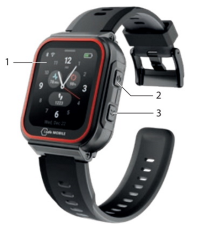
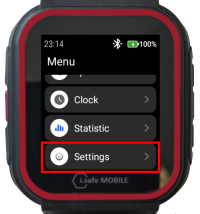
- Open Settings.
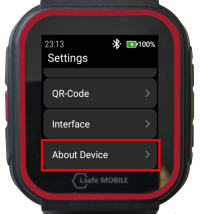
- Select About Device.
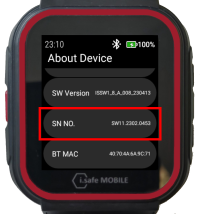
- Tap the SN NO. button 10 to 20 times.
- Press the right side key once to go back one step.
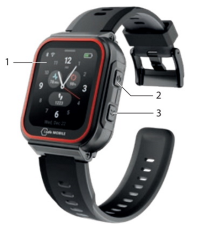
- Long-press on Settings.
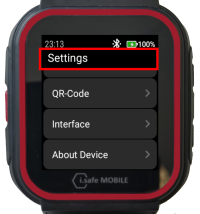
Developer Mode (and USB debugging) is now active on the watch.
You can also check the manufacturer's official instructions, with pictures, here: How do I activate developer mode on the IS-SW1.1?
2. Extract the installer package
Download the DexOSWear-Installer package and extract it to a folder on your computer. Keep the folder structure exactly as provided:
Windows-DexOSWear-Installer
 ├── DexOSWear-Installer.exe
 └── Files (folder with all required files)

Do not move the .exe file out of this folder, and do not separate it from the Files folder — the installer needs both to work.
3. Run the installer
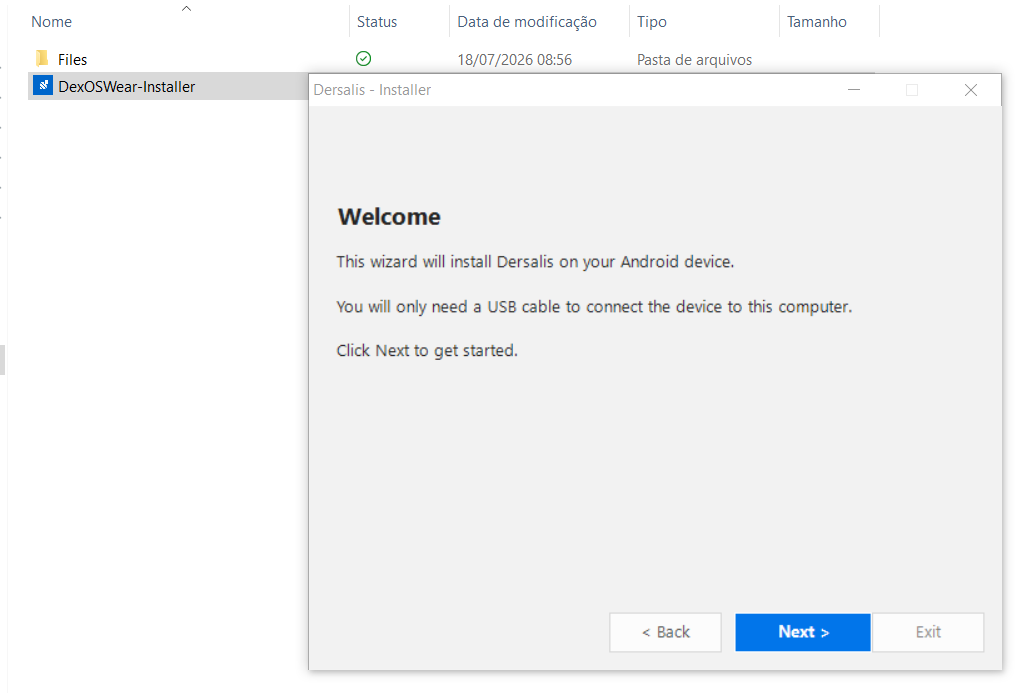
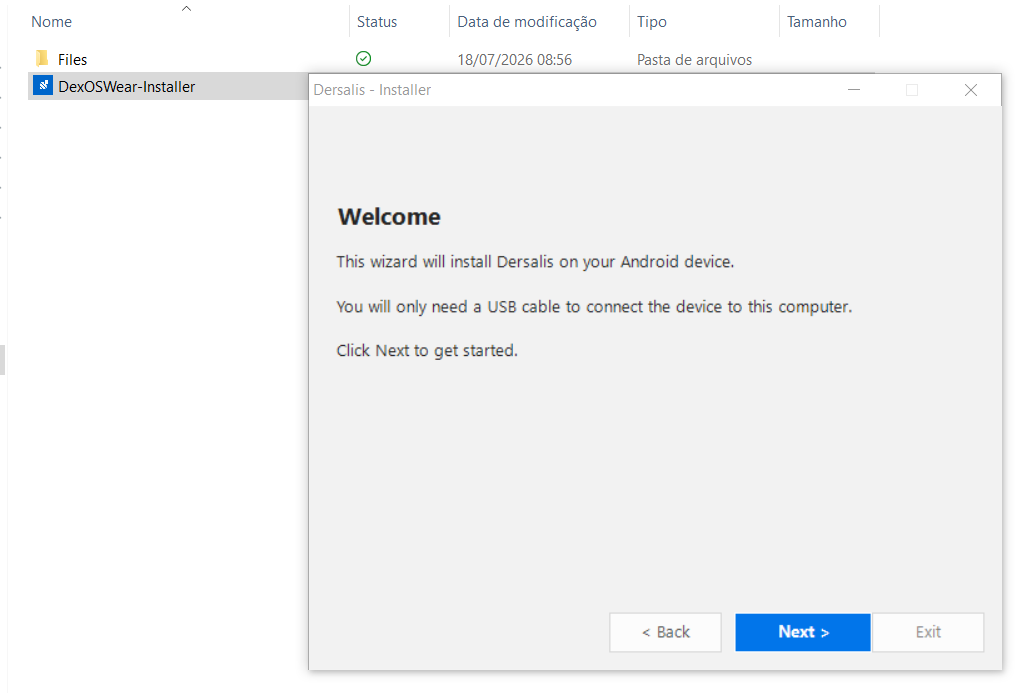
Double-click DexOSWear-Installer.exe to start the installation wizard. The installer's version number is shown in the title bar of the window, so you can confirm you're using the latest one.
If your antivirus blocks the file: this can happen because the installer is not digitally signed. This is a known false positive. Restore the file from quarantine (or add an exception for the folder) and run it again. If you're not sure how to do this, contact your IT team or reach out to Dersalis support.
Follow the wizard step by step:
-
Welcome — click Next to get started.
-
Checking tools — the wizard confirms it can find the required files.
-
Enable Developer Mode — a reminder of the steps from section 1 above, with a link to the manufacturer's instructions.
-
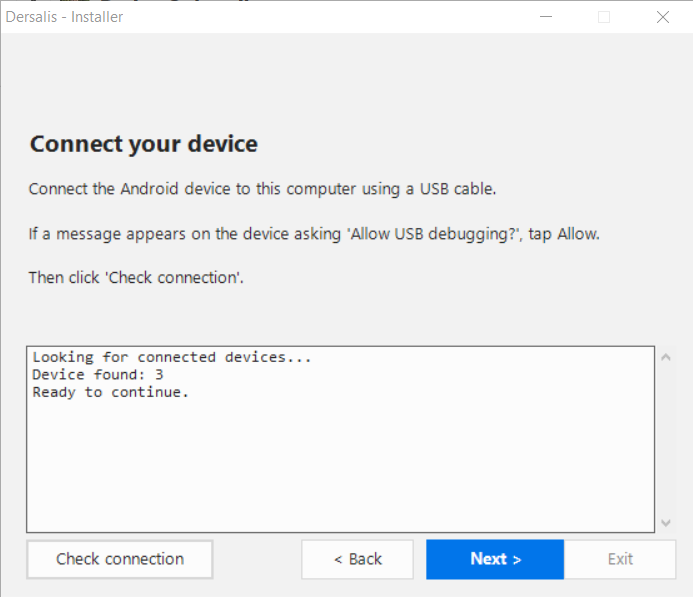
Connect your device — connect the watch via USB. If a message appears on the watch asking "Allow USB debugging?", tap Allow. Then click "Check connection" in the wizard.
-
Device Date & Timezone — optional step. You can open the device's date and timezone settings here, or skip it and come back later using Back / Next. See Set the device date and timezone below for details.
-
Installing — the app is installed on the watch. If a previous version is already present, it is updated in place and existing data is preserved automatically.
-
All done! — you can disconnect the USB cable.
4. Set the device date and timezone
This step is optional and can be done at any point during setup — use Back / Next in the wizard to return to it.
- On the "Device Date & Timezone" screen of the wizard, click Open time settings.
- On the watch, turn ON Automatic date & time and Automatic time zone, so the watch keeps the correct time by itself.
- If those options are not available, or the watch cannot detect the correct timezone automatically (for example, with no network connection), turn them off and set the date, time and timezone manually.
5. Set Dersalis as the Home app
This step is required after every installation. Without it, the watch will not open Dersalis automatically.
- On the watch, press the Home / Power key.
- A "Select a Home app" screen should appear, listing the available launcher apps.
- Select Dersalis.
- Tap Always (not "Just once"), so Dersalis is used as the Home app every time going forward.
If the "Select a Home app" screen does not appear automatically:
- Go to Settings on the watch.
- Open Apps (or Application Manager).
- Find Default apps (or Default Applications).
- Select Home app.
- Choose Dersalis.
The exact menu names may vary slightly depending on the Android version on the watch.
Troubleshooting
No device found when clicking "Check connection" Check the USB cable and make sure Developer Mode / USB debugging was enabled correctly (section 1). Try a different USB cable or port if the issue continues.
More than one device found Connect only one watch at a time to the computer.
The installer is blocked by antivirus software See the note in section 3 above. This is a known false positive caused by the installer not being digitally signed.
Dersalis does not open automatically after installation Follow the steps in section 5 to set Dersalis as the Home app.